Design to Code
Best Figma Plugins for Developers (Free + AI-Powered)


Updated on May 7, 2026
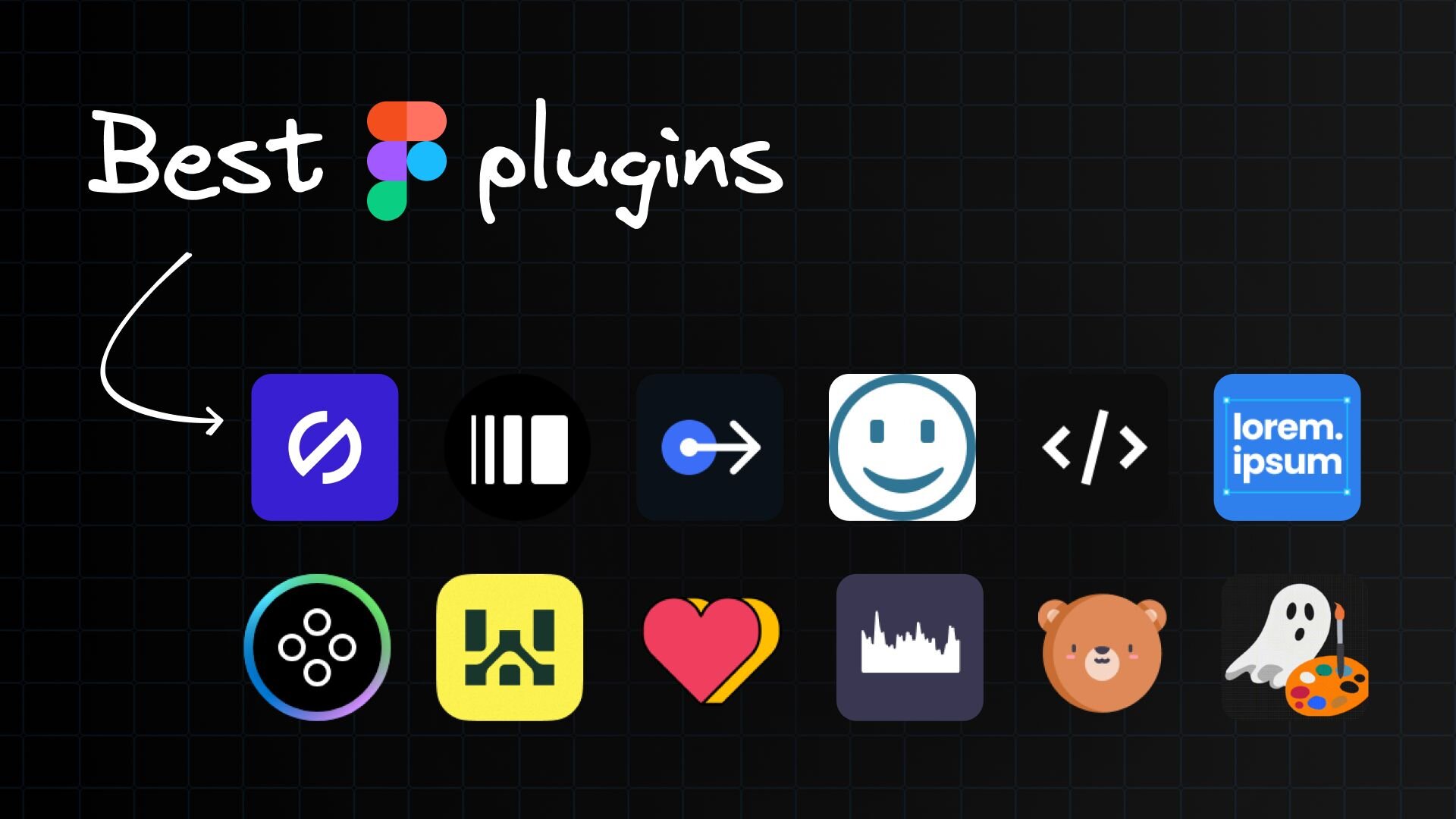
The best Figma plugin for developers is Visual Copilot — used by 1.25M+ designers and developers to convert Figma designs into production-ready React, Vue, Svelte, Angular, Qwik, Solid, React Native, or HTML with Tailwind, CSS Modules, Emotion, or Styled Components. The rest of this guide covers the eight other Figma plugins worth installing in 2026, organized by what developers actually need: design-to-code, accessibility, icons, animation, prototyping, and email export.
Skip the handoff entirely. Install Visual Copilot — free and turn any Figma frame into clean, framework-native code. See how it works →
What is a Figma plugin?
A Figma plugin is a small piece of software that runs inside Figma to extend the editor — automating repetitive tasks, generating assets, exporting to code, or connecting to external services. Figma plugins are built by Figma, by third-party companies, and by the community, and most are free. For developers, the best plugins remove handoff friction: turning designs into code, validating accessibility, or generating realistic placeholder content.
What is the best Figma plugin for developers?
Visual Copilot is the best Figma plugin for developers because it eliminates the design-to-code handoff entirely. Other plugins improve a step in your workflow; Visual Copilot replaces the longest step — translating a Figma design into framework-native code — with an AI pipeline that outputs responsive, component-mapped code in your stack of choice.
Visual Copilot — Figma to production-ready code

1.25M+ designers and developers use Visual Copilot to turn Figma into React, Vue, Svelte, Angular, Qwik, Solid, React Native, and HTML.
Visual Copilot is an AI-powered Figma to code toolchain from Builder.io. It uses a combination of LLMs and an open-source compiler, Mitosis, to convert flat Figma designs into a clean component hierarchy — then refines the output for your framework, styling library, and design system.
Key features:
- Converts Figma designs to code for React, Vue, Svelte, Angular, Qwik, Solid, React Native, and HTML
- Outputs your choice of styling: CSS, Tailwind, CSS Modules, Emotion, or Styled Components
- Automatically responsive — generated code adapts to screen sizes even if the source designs lack auto layout
- Component mapping — point Figma components at your existing React/Vue components and Visual Copilot reuses them
- AI refinement with natural-language prompts ("make this header sticky", "extract this into a reusable card component")
- Bonus: import any website into Figma as fully editable elements
Best for: any developer who has ever wasted an afternoon translating a Figma frame into JSX.
Which Figma plugin checks accessibility?
Stark is the most widely used accessibility plugin for Figma, with 568k+ users and built-in tools for contrast, vision simulation, focus order, alt-text annotations, and touch-target sizing.
Stark — Contrast & Accessibility Checker

Stark catches accessibility issues before they ship — and now includes Sidekick, an auto-scan that flags issues across an entire file in seconds.
Key features:
- Contrast checker with color suggestions that pull from your design system
- Vision Simulator (color blindness, blurred vision, contrast loss)
- Landmarks and Focus Order for screen readers
- Alt-Text Annotations with AI-generated suggestions in 5 languages
- Touch-target sizing for mobile
Best for: teams shipping to WCAG 2.1 AA or AAA who want accessibility built into the design pass, not retrofitted in QA.
How do I add icons to a Figma design?
Iconify is the standard plugin for icons in Figma, with 200,000+ open-source icons across 150+ icon sets — Material, Heroicons, Phosphor, Tabler, and more — searchable directly inside the editor.
Iconify

Iconify saves the "search GitHub for an SVG, drag it into Figma, fix the stroke width" loop. Search by name, pick a set, drop it in.
Key features:
- 200,000+ open-source icons in one plugin
- 150+ icon sets including Material Symbols, Heroicons, Lucide, Phosphor, Tabler
- Drop as SVG or as a Figma component
Best for: any project where you want a consistent icon set without managing asset files.
How do I visualize user flows in Figma?
Autoflow is the simplest plugin for drawing user-flow arrows between Figma frames — it auto-detects obstacles, supports custom path routing, and updates as you move frames around.
Autoflow

Autoflow draws connecting arrows between any two layers — handy for mapping a multi-screen user journey or annotating a complex prototype.
Key features:
- Intelligent obstacle detection
- Hand-drawn or minimalist line styles
- Text annotations on paths
- Auto-updates when you move frames
- Free up to 50 flows per file
Best for: PMs and developers who want a flow diagram without leaving Figma for Whimsical or Lucidchart.
Stop reverse-engineering Figma frames into JSX. Visual Copilot generates the component for you in your framework and styling library of choice — used by 1.25M+ developers. Install free →
How do I export animated banners from Figma?
Bannerify is the production-grade banner-animation plugin for Figma, exporting GIF, MP4, WebM, animated WebP, HTML/CSS, and ad-platform formats from a Figma timeline UI.
Bannerify

Bannerify is the closest thing to After Effects living inside Figma. Animate keyframes on a timeline, embed Lottie or MP4 layers, and export production-ready banners.
Key features:
- Real-time timeline animation inside Figma
- Export to HTML/CSS, GIF, MP4, WebM, animated WebP, and a dozen ad platforms (Google Ads, etc.)
- Embed Lottie or MP4 in any layer
- Optional MP3 audio track on MP4 exports
- Automatic asset optimization with file-size budgets
Best for: marketing engineers and ad-ops developers who would otherwise hand-code every variant.
How do I export Figma to HTML email?
Email Love exports responsive, production-ready HTML or MJML email directly from Figma with 100+ pre-built components and global style controls for brand consistency.
Email Love

Email Love is the missing email-export pipeline for Figma. Drop in components, set global styles, export accessible MJML or HTML that renders cleanly across Gmail, Outlook, Apple Mail, and the rest of the long tail.
Key features:
- Figma-to-HTML and Figma-to-MJML export
- 100+ pre-built, mobile-friendly components
- Global style controls for fonts, colors, layouts
- Accessibility-first HTML (real text, not images)
- Built on Mailjet Markup Language for cross-client compatibility
Best for: product and lifecycle developers who own the email codebase and want design fidelity without re-coding by hand.
What's the best plugin for placeholder content in Figma?
Lorem Ipsum by ‹div›RIOTS is the most-used placeholder-content plugin in Figma, with 1.18M users — it auto-fits text to layer size, pulls Unsplash images, and generates fake profile and e-commerce data.
Lorem Ipsum

Lorem Ipsum is the one-keystroke way to fill text layers, image fills, and fake-profile data. Bonus: Quick Action support — ⌘ + / and type "Lorem Ipsum".
Key features:
- Auto-generate text sized to fit the selected layer
- Fill any shape from the Unsplash image archive
- Generate fake profiles and e-commerce data
- Quick Actions integration
Best for: prototyping with realistic-looking content before real copy or data exists.
Content Reel

Content Reel is Microsoft's take on the same problem with one extra trick: you can publish your own reusable content collections and share them across a team. Apply text strings, images, and icons across multiple selected layers in one click.
Key features:
- Browse or publish reusable text/image/icon collections
- Apply across multiple selected layers (in order or randomly)
- Pin your most-used content to the home screen
- Free, maintained by Microsoft
Best for: design systems teams who want a shared content palette across files.
How do I prototype data-heavy interfaces in Figma?
Datavizer generates real charts inside Figma from CSV or JSON data — bar charts, scatter plots, line charts, sparklines — without bouncing to a separate tool.
Datavizer

Datavizer drops real charts into mockups so dashboards stop looking like rectangles labeled "chart goes here".
Key features:
- Bar, line, and scatter chart types
- Import CSV or JSON
- Auto-generate dummy data for sparklines and dashboard mockups
- Customizable styling
Best for: developers and PMs prototyping admin panels, dashboards, or analytics views.
Frequently asked questions
What's the best Figma plugin for developers?
Visual Copilot is the best Figma plugin for developers because it converts Figma designs directly into production-ready React, Vue, Svelte, Angular, Qwik, Solid, React Native, or HTML — with your choice of Tailwind, CSS Modules, Emotion, or Styled Components. It's used by 1.25M+ designers and developers and is free to install.
Can Figma export to React?
Figma does not export to React natively. To convert a Figma design to React, install Visual Copilot — it generates clean, responsive React components from any Figma frame, with optional Tailwind or Emotion styling and component mapping to your existing design system.
How do I generate code from a Figma design?
The fastest way to generate code from a Figma design is to install Visual Copilot, select a frame, and choose your target framework (React, Vue, Svelte, Angular, Qwik, Solid, React Native, or HTML) and styling library. The plugin uses AI plus the open-source Mitosis compiler to produce framework-native, responsive code that you can copy into your project or refine with natural-language prompts.
What's the difference between Figma Dev Mode and a Figma to code plugin?
Figma Dev Mode is a paid Figma seat that exposes spacing, color tokens, and CSS snippets for inspection — it doesn't generate components or framework code. A Figma to code plugin like Visual Copilot goes further: it produces a real component hierarchy in React, Vue, Svelte, Angular, or other frameworks, with responsive layout and design-system mapping.
Are Figma plugins safe to install?
Figma plugins published to the Figma Community run in a sandboxed environment and only access the file you grant them. Stick to plugins from established publishers (Builder.io, Microsoft, Stark, ‹div›RIOTS) and check the install count and update history before installing.
What's the best free Figma plugin?
The best free Figma plugin for developers is Visual Copilot — it's free to install, free to convert designs to code, and used by over 1.25M designers and developers worldwide.
Wrapping up
Figma plugins are leverage. The right ones remove an entire step from your workflow — and the single biggest step they remove is the design-to-code handoff. If you install one plugin from this list, make it Visual Copilot: you'll go from a Figma frame to a working React, Vue, Svelte, or Angular component in seconds, with responsive layout and design-system mapping done for you.
Then layer in the rest based on what you ship: Stark for accessibility, Iconify for icons, Autoflow for flows, Bannerify for ad creative, Email Love for transactional email, and Lorem Ipsum or Content Reel for placeholder content.
Install Visual Copilot — free → | See Figma to code in action
About me
I'm Luke Stahl, a front-end developer and digital marketer. My philosophy? Build, ship, and learn as you go.
Share